Recipes
Ripping discs is much more art than science, and there are numerous edge cases that you may run into. This section tries to cover what to do in some of these scenarios.
Blu-ray ripping
While DVDs still seem to be the most common format for TV series, Blu-rays are becoming incresingly common. Unfortunately, ripping Blu-ray is rather more complex and requires some one-time setup to get started.
Whilst the encryption on DVDs (CSS) is relatively trivial for a modern machine to bypass, the encryption on Blu-rays (AACS) cannot be bypassed without some knowledge of the keys, which are periodically expired with new ones being released.
Thankfully, some extremely kind people maintain a database of the currently known keys at the FindVUK Online Database. To configure your system to use these:
Visit the FindVUK Online Database and download the current
keydb.cfgfile. This is served as a ZIP archive.Create the
.config/aacsfolder under your home directory:mkdir ~/.config/aacsExtract
keydb.cfgfrom the archive, and move it under the created folder, renaming it toKEYDB.cfg(the case sensitivity matters):unzip keydb_eng.zip mv keydb.cfg ~/.config/aacs/KEYDB.cfg
With this done, you should be able to both scan and rip Blu-ray discs of TV series.
Fixing “combing” artifacts
Broadcast video today commonly uses “progressive scan”, which is just a technical way of saying that each frame of video is broadcast fully, top to bottom. However, video from before the 2000s (roughly) was commonly broadcast “interlaced”. This doubled the frame-rate but broadcast only half the horizontal lines for each frame.
DVDs from this era commonly contain interlaced video too. If this is encoded directly into a progressive format, you will wind up with “combing” at the edges of anything moving horizontally from frame to frame, as illustrated below:
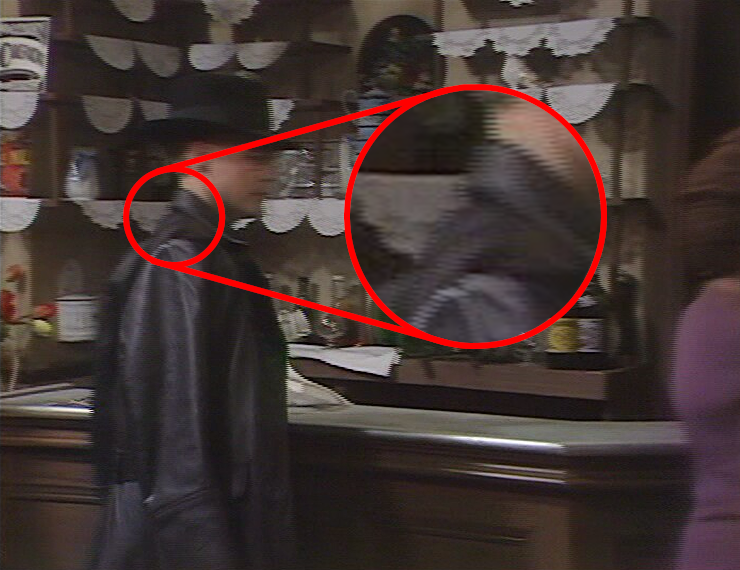
Not only is this unpleasant to look at, it also ruins the compression ratio of the video as the combing produces lots of “fine edges” that the encoder will struggle to compress. The decomb setting can be used to deinterlace such sources when ripping:
(tvrip) set decomb on
By default this setting is off because it does notably increase the time it
takes to rip things, and may also reduce quality if deinterlacing is mistakenly
applied where it is not needed (although the quality reduction is arguably so
minimal as to be unnoticeable). With this setting activated the above frame
becomes:

There are cases of sources which are selectively interlaced. This is fairly common on shows from the late 90s to late 2000s, in particular where visual effects are concerned. The majority of the show appears progressively encoded, but whenever something computer generated is on screen (including overlaid title cards), combing suddenly appears. This was a result of combining video sources, one of which was progressive and one interlaced. In such cases, the decomb configuration should be set to “auto”:
(tvrip) set decomb auto
This will attempt to detect combing and only apply the deinterlacing to frames where it appears.
Ignoring duplicated titles
TBC – cover duplicates setting, when to use it and when not to, and why duplicate tracks typically exist
Mapping chapter-based episodes
TBC – automapping by playback example (try and find an actual example; Robot Chicken was definitely one)
Multipart episode handling
TBC – how kodi (and therefore tvrip) expects these to be named, how automapping looks for duration multiples
Format selection tips
TBC – mp4 vs mkv, aac vs mp3, etc. – compatibility versus flexibility